

How to Rebook
Need to change your trip date or time? Follow these steps to rebook online.
Barkota Online Booking
-
Go to Manage Booking
Visit booking.barkota.com and click Manage Booking in the navigation menu.
-
Find your ticket
Enter your Booking Reference Number or Ticket/Control Number, along with the email address used when booking. Click Find My Ticket.
-
Select tickets to rebook
Your ticket details will appear. Check the box next to the ticket(s) you want to rebook, then click Rebook.
-
Choose a new schedule
Select your new trip date and time.
-
Pay the rebooking fee
Choose your payment method and click Proceed.
-
Confirm
Review the new trip details and payment summary. Click Yes to confirm.
Barkota Mobile App
-
Go to Manage Booking
Find and select the specific booking transaction you want to change, then tap Continue.
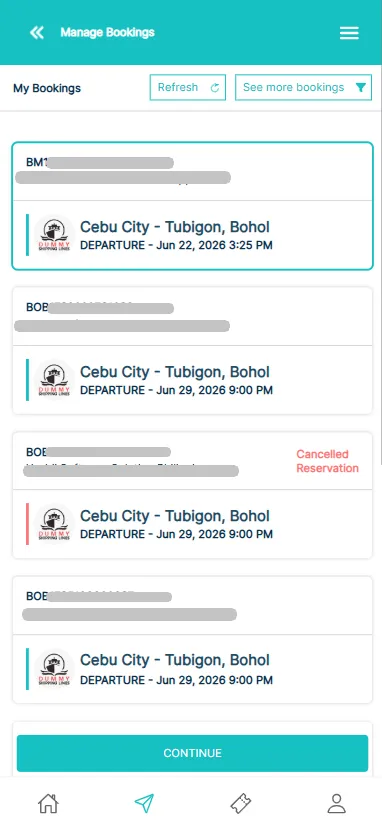
-
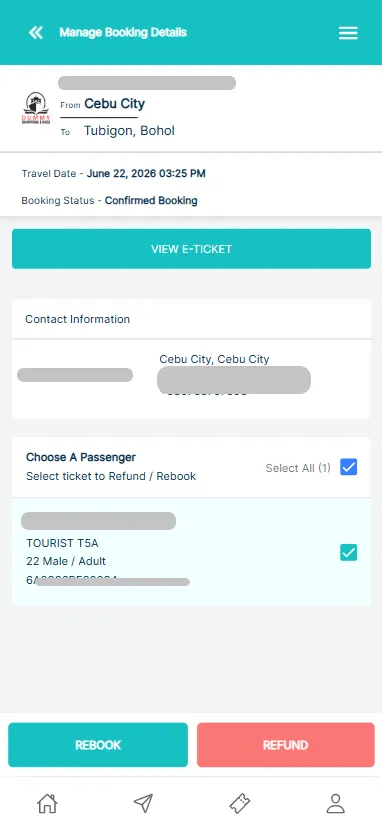
Choose Passenger(s)
Choose the passenger names you wish to rebook, then tap Rebook.
-
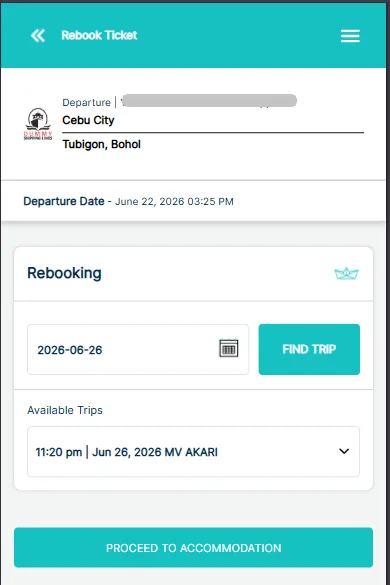
Select New Departure Schedule
Pick your new travel date and tap Find Trip. Browse the available voyages, select your preferred time, and tap Proceed to Accommodation.
-
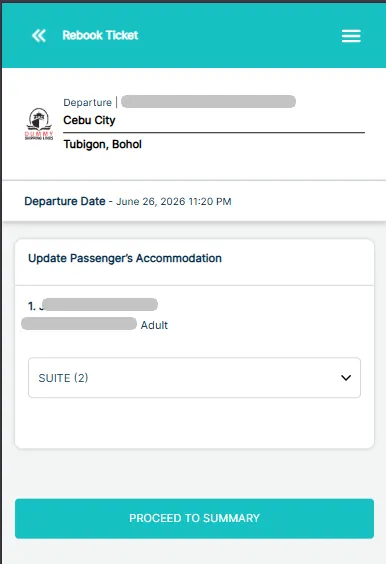
Select Accommodation
Choose your preferred seating or cabin class (e.g., Tourist, Business, or Economy), then tap Proceed to Summary.
-
Confirm Details
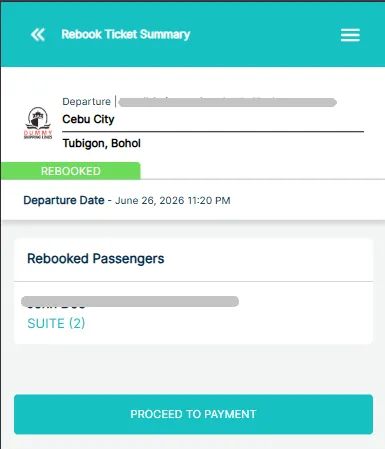
Carefully review your updated trip details, travel dates, and passenger information. If everything looks correct, tap Proceed to Payment.
-
Payment
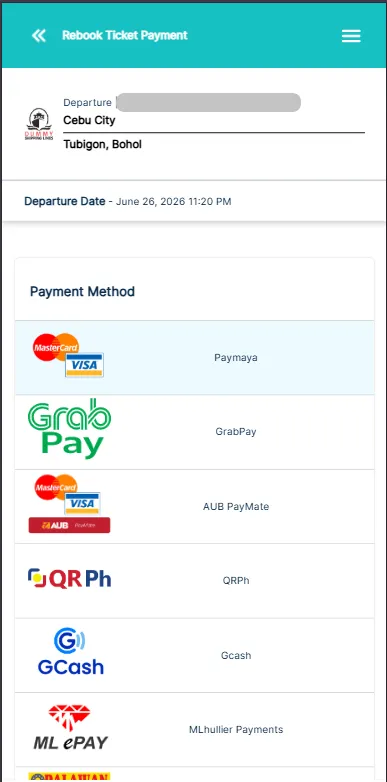
Select your preferred payment method to settle any applicable rebooking fees and fare differences. Follow the on-screen payment instructions. Once your payment is successfully verified, your new e-ticket will be automatically sent to your registered email address.
Common Rebooking Issues
Ticket Bought on Another Platform
If your ticket was purchased from a platform other than Barkota (e.g., a ticket outlet, shipping line counter, or another online platform), contact that platform directly. See Refund & Rebooking Eligibility.
Ticket Shows as “Boarded” or “Checked-In”
If your ticket is mistakenly marked as boarded or checked in, contact Barkota Support. We’ll coordinate with the shipping line to correct the status so you can rebook.
You Already Have an Active Rebooking Request
Only one rebooking request can be active at a time. Contact Barkota Support to cancel the existing request, then proceed with a new one.
Rebooking Fee Payment Failed
If your rebooking fee payment fails, contact Barkota Support for assistance.
Your Desired Trip Isn’t Available
If you can’t find the trip you want, send your request to Barkota Support. We’ll check with the shipping line on availability.
Rebooking Surcharge
- If the shipping company cancels the trip (weather or maintenance), the rebooking surcharge is waived.
- If you initiate the rebooking, a surcharge may apply — rates vary by ferry operator.
Check the “Rebooking” section on the relevant Ferry Operator page for specific rates.
Route Changes
Route changes are not permitted through rebooking. To change your route, request a refund and create a new booking for the desired route.